
Welcome to AviAdmin tutorials and help area.
Learn how to use the portal with this comprehensive guide.
AviAdmin is a revolutionary Aviation management system to handle all in house requirements to successfully minimize daily operational workflow for optimum compliance and operation and at the same time gathering all associated within the Aviation business for a one stop source of everything. Introducing features such as Operation management, Overall reporting features, Safety and compliance, User license status monitoring, Online study, Training progress status, Accounting, Social areas……. And much more. This tutorials page is intended for administrators and staff.
Dashboard
The portal landing page is the Dashboard which has many features displaying all necessary information for the specific user logging in. The entire dashboard setup i done one time in the access rights area where individual user type such as admins, instructors, students, ground crew, authorities etc, will have their individual dashboard design setup. Admin types of user can have relevant items give a quick overveiw of their administrative tasks and student types of users will have their current status and overall process displayed.
Admin type dashboard
In this specific access right setup, the user can get a quick overveiw of which user is in negative balance, which user didnt upload their relevant document relevant for their profile such as valid nstructor license(s), but also documents like passport etc. Dashboard displays aircraft expiries, e.g. aircraft items such a fire extinguisher etc. Dashboard displays if an aircraft is low on time before service, gives an overview of maintenance cost, shows if users didnt do their flight report. The admin upcoming duty time shows if users didnt check-in and out so admin can do that for them and also if users uploaded new documents for approval.

Student type dashboard
Adjusted in the access rights to user specific items giving the user a fast overview of the most important things to see

Hide menu, full page view
It is possible to hide the left side menu, by clicking on the plus next to the AviAdmin logo. This gives for an example flight ops to have a full page view, but it also helps student while doing courses and tests.

My Area
My details -> Profile
In the Profile page, users own information and profile picture will appear. Details such as primary and secondary emails, phone number, ID / license number, address and if user has any discount (which is set by admin), then it will appear here too. User & admin can always edit/delete the informations in profile page.

My details -> Status
Here user can follow their current status. Like everything else, this is an access right needed to display. Since overall of this area displays student relevant information, this access right is in generally only chosen for student as it displays vital informations to students about their current theory attendance informations, hov many flights, where they are in their flight training, payment balance and so on.

My details -> Flight time limitations
FTL is the name of the rule set which is necessary to ensure that air crew fatigue does not decrease the flight safety. Since the most of aviation incidents and accidents are result of human factors, fatigue is taken into account as a major factor which contributes to the human error. Therefore, the fatige of crew members is an issue in civil aviation since the 1944 Chicago Convention. When user has to do a flight, they must login to portal, where they will have checkin and checkout buttons. These data will be saved in users FTL account and data will calculate if they are within the limits of FTL.

My details -> Documents
To be compliant within Aviation environments, any user – flying or staff must have valid documents such as licenses, passports etc. At user setup, when preset access right level is chosen, the various documents required by authorities will display, user will be required to upload documents setting initial and expiry for admin approval. In the backend setup, it is set up so that system will send expiry warning to user. When documents are expiring, user & admin will be notified by email, and user will display in admin dashboard. When a document is expired it will be put in the “archive” section. The documents area contains. * Missing documents, * Approved documents, * Pending documents, * Expired documents, * Declined documents.

1) Admin dashboard showing users with document issues

1-1) User dashboard showing missing document issues

2) User document upload with initial & expiry set

3) Admin has the option to decline, archive or approve at document at any time, if approved/declined – used will be notified by email

4) Once document is submitted, admin will be notified anc can find it in users pending documents and can click on it for approval.

5) When document is approved, it will appear in the “approved document area”

6) Portal sends mail to user with the message “Document approved”

My details -> Archive
Any declined document can be moved to the archive area. This to be compliant with regulations

My details -> Reports
The reports menu consist of users own flight reports, Test reports and Lesson report from day one. User can filter dates and search for specific reports, and download them as pdf.

My details -> Financials
The user financial area is an accounting system keeping track of the money situation for user and admin to view. Entries is based on data from Flight reports and manual input like purchases within the organisation. If student pays for theory or accessories etc., finance department enters manually a “payment” with description which will deduct the amount from the prepaid amount. Flight reports auto calculate the sum of flown program, and if “balance” is chosen when submitting payment, then Flight report system automatically deducts the money from user prepaid balance. Finance department can at any time edit and update any entry of a user. Note, this is a view only for users and admin. For the full accounting system go to the finance area.

Bugs/suggestions?
The bugs & suggestions area makes it possible for users to send information to AviAdmin if they experience any kind of difficulties

Inbox
The platform also offers an internal mailing system, where user can communicate within all users in the organisation

Operations calendar
The calendar is a big part of the whole portal and its utilities which actions relays to several parts of portals functions like all the reports a pilot school creates from flightreports to user accounting. Its design makes it easy to understand, creates a fast visual impression and overview and with its color settings, the easy entry setup buttons gives any operational scheduler to easy setup and modify all the operations and even directly in each entry several options to finanlize all flight reporting is possible.
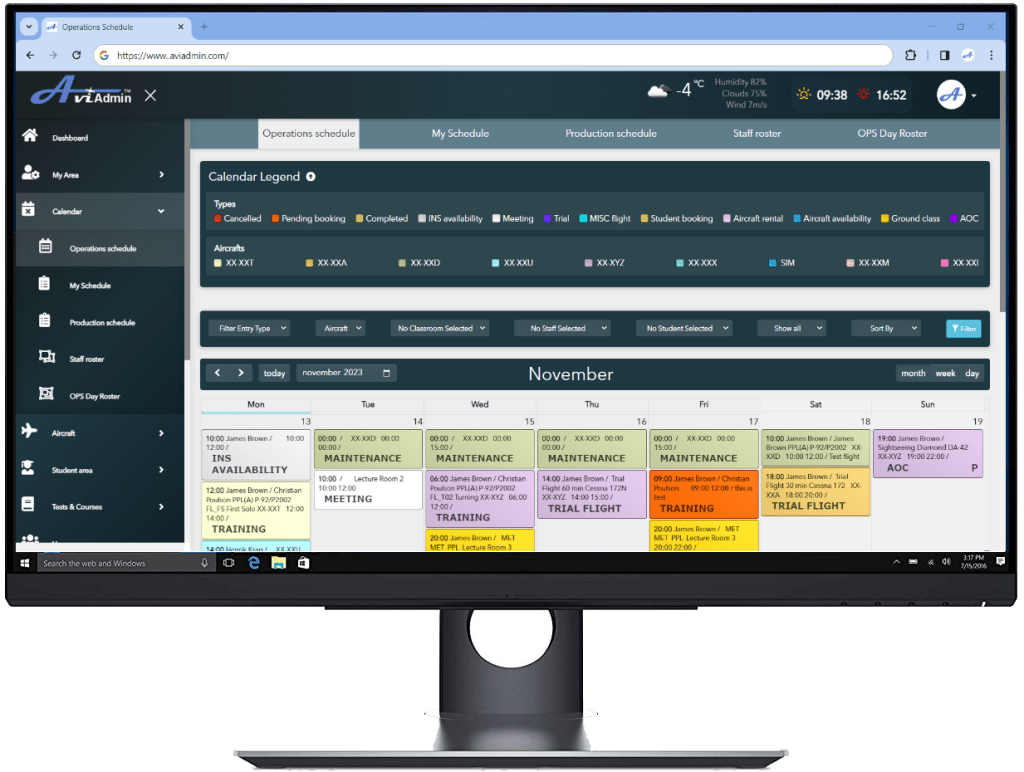
Limited or full details calendar
Users can be set up by access rights to view limited or full details calendar. The all operations shows all details of the calendar depending if user have full or limited access. My schedule part of calendar shows only the details of user’s personal entries. The difference between the full calendar and the limited is that full calendar shows all details of entry whereas the limited only shows few details for which flights it is, which plane and what time, and for theory it shows what classroom and what time. To allow a user type to see full calendar, click “See all operations”, if not clicked, user will have a limited view. Any user can always see an entry that user is fully a part of.


Calendar color codes
Each color code in calendar entry represents operations. All Aircrafts have their own colors which are set in the Aircraft area so when an entry is approved on an Aircraft it shows in the Aircraft designated color.

- Completed: Once a flight report is made, entry turns green as completed.
- Cancelled: Is a cancelled flight. Once a flight is approved, if school is to be complaint a cancellation report must be done and entry becomes red.
- Pending booking: Is a booking that either is setup by OPS or some user has that have booked Fi availability. Once approved, color will turn to the Aircraft designated color.
- Pending AC Rentals: Showing this color until rental flight is approved and then it will show aircraft color and in entry.
- Ground Classes: Any ground class displays this color and show in entry
- Pilot Availability: If user has the access level, user can add available.
- Aircraft Rental:
- Student flying: When student flight is setup It will show the designated Aircraft color in entry and show
- Aircraft Maintenance: When aircraft is booked for maintenance. It will show the designated Aircraft color in entry and show .
- Misc: Is for setting up any kind of entry like internal meetings or internal company flights.
- Trials: Pending trials show this color. Approved it will show aircraft color and
- Meeting: Meetings will show in calendar
Calendar Entry types

- Availability: Instructor availability, is used for instructors to mark them self available for admin and users to see.
- Student Flying: Used for setting up agreed flights, either amound student & instructor or student & admin.
- Ground Class: Here user is added for any ground class during education or company compliance training.
- Aircraft rental: The Aircraft rental is for any users, using company aircrafts for private flights.
- Maintenance: Is used when aircraft goes for maitnenance to show users & admin thats its not available.
- Misc flight: Used to setup various flights, maybe company internal flight or ferry fight etc.
- Trial flight: For pilot schools to be able to setup flights for external students who want to try a flight.
- AOC Flight. For any AOC flight, PAX, Cargo etc.
- Meeting: Used for setting up any “Ground based” meetings, e.g. company, student, staff etc meeting
Creating entry / compliance check
When an entry is being setup, portal will check each user current status, if they have valid documents etc.

Setting up instructor availability
Instructors, OPS and any other with the access level right can setup instructor availability. Instructors are commonly having several jobs and no time to call in availability, with this feature they are able to plan easily. When an instructor is set available OPS can assign students or if a student have the access level right, then student can directly book the instructor which will be pending approval by OPS who will also assign aircraft etc. When instructor has set availability it will appear as a grey entry.

Multiple entries setup. An instructor can also setup for multiple entries so if an instructor knows the availability certain days in a week, every week in a month the instructor or OPS can setup from date to date using repeat function.
Repeat function can be used for: Daily, Weekly, Monthly, Yearly

Setting up student flights
OPS or the user with granted access level – can setup student flying. Usually also instructors have the access level to setup flights so after a training flight instructor and student agree on a new flight at a specific time they can set it up for OPS approval. Only OPS should have access level to approve flights
Once setup / approved / unapproved, users in entry will get notification by email and the entry will display in calendar with the designated color code with all details of the flight. Color of entry is determined unapproved / approved and by aircraft color once approved.

Setting up ground classes
The calendar has a smart function for ground classes’ setup. If ground classes are setup correctly in backend including the duration in hours of each subject ref.: school Training Manuals, and all steps are followed one by one in creating the ground class, the system will automatically calculate end date when setting up a ground class subject.
Once setup / approved / unapproved, users in entry will get notification by email and the entry will display in calendar with the designated color code with all details of the ground class.

Setting up aircraft rental
Any user with the access level can request a rental for OPS approval or OPS can set a rental on demand. Once setup / approved / unapproved, users in entry will get notification by email and the entry will display in calendar with the designated color code with details of the rental. If user setup rental, user can only choose aircraft, set date/time and tell intended routing.

Setting up Aircraft Maintenance
Aircraft maintenance entry will give OPS a fast overview in calendar. Aircraft will display in its color code and entry will show
If maintenance need to do a test flight, they also can do an flight report and the cost of the flight will display in the maintenance account.

Setting up MISC Entry
Lorem ipsum dolor sit amet, consectetur adipiscing elit. Ut elit tellus, luctus nec ullamcorper mattis, pulvinar dapibus leo. Lorem ipsum dolor sit amet, consectetur adipiscing elit. Ut elit tellus, luctus nec ullamcorper mattis, pulvinar dapibus leo. Lorem ipsum dolor sit amet, consectetur adipiscing elit. Ut elit tellus, luctus nec ullamcorper mattis, pulvinar dapibus leo.

Setting up Trial flight
Lorem ipsum dolor sit amet, consectetur adipiscing elit. Ut elit tellus, luctus nec ullamcorper mattis, pulvinar dapibus leo. Lorem ipsum dolor sit amet, consectetur adipiscing elit. Ut elit tellus, luctus nec ullamcorper mattis, pulvinar dapibus leo. Lorem ipsum dolor sit amet, consectetur adipiscing elit. Ut elit tellus, luctus nec ullamcorper mattis, pulvinar dapibus leo.

Adding an AOC Flight entry
Lorem ipsum dolor sit amet, consectetur adipiscing elit. Ut elit tellus, luctus nec ullamcorper mattis, pulvinar dapibus leo. Lorem ipsum dolor sit amet, consectetur adipiscing elit. Ut elit tellus, luctus nec ullamcorper mattis, pulvinar dapibus leo. Lorem ipsum dolor sit amet, consectetur adipiscing elit. Ut elit tellus, luctus nec ullamcorper mattis, pulvinar dapibus leo.
Adding a meeting
Lorem ipsum dolor sit amet, consectetur adipiscing elit. Ut elit tellus, luctus nec ullamcorper mattis, pulvinar dapibus leo.

Repeated entries
Lorem ipsum dolor sit amet, consectetur adipiscing elit. Ut elit tellus, luctus nec ullamcorper mattis, pulvinar dapibus leo.

Entry reports
Every entry has options to create reports. This is to ensure that data such as aicraft data is being entered into system so admin and maintenance and finance and much more constantly actively can follow the aircraft current status. But data is also being used in so many other areas. First of all, the flight reports and cancellation reports is needed for compliance, lesson reports is also very importat to track student progress, but system also monitors fuel consumption, finances etc, so reports is very important for each calendar entry to be fullfilled. Once reports are done, system marks the entry as it is done, with report done.

Every entry, except Availability has it own set of reports which must be filled out when task is finished
- Student Flying: Flight report, Cancellation report, Lesson report.
- Ground Class: Attendance report, Cancellation report.
- Aircraft rental: Flight report, Cancellation report.
- Maintenance: Flight report.
- Misc flight: Flight report, Cancellation report, Lesson report.
- Trial flight: Flight report, Cancellation report, Lesson report.
- AOC Flight. Flight report, Cancellation report.
- Meeting: Attendance report, Cancellation report.
Flight reports
The Flight report is a big part of being compliant and also for schools in general to have substantial reports for overall general functioning of all school administrative areas. Every flying activity in schools must be reported, whether it is schooling, internal flights or trials – it must all be in schedule and reported
After a flight, the student must enter in his entry in “my schedule” for the flight just finalized and click Create Flight Report. This must be the job of the student after being supervised by instructor for some time
Flight report calculates all pricing, which can be setup for Block to Block, Hobbs to Hobbs or Tach time. Pricing for different departures, touch and goes etc. and in various airports can also be added. Also pricing for solo flights can be setup to be like rental price. Pricing is backend and can be setup for each program and setup school offers.
The total price of flight will be deducted in students accounting if student use pay via balance

DATA taken from entry
When creating Flight report data entered into calendar entry is automatically transferred into the flight report.
Selecting PIC
Choosing the PIC from dropdown list – dropdown includes all users in portal-
Enter Departure Airfield & Arrival Airfield
Setting the airfield taken off from and landed to. If several airports, the
more legs needed entered – click the + button next to Add another leg
Setting block time
Entering block to block time auto calculated total airborne & total block
Entering Tach time
If Tach is enabled in Aircraft, the field for entering end Tach on and Tach off will calculate total Tach. Correct format is xxxx.xx System will not allow invalid format.
Entering Hobbs time
If Hobbs is enabled in Aircraft, the field for entering Start Hobbs on and End Hobbs will calculate total Hobbs. Correct format is xxxx.xx System will not allow invalid format.
Add dep/ldg/t-go – click +
For flight report to be fully compliant all landing, dep/ldg/t-go etc must be entered. Most airport charges fee’s for the various operations and these can be setup in backend fixed with pricing
If more legs then click +
A flight report is a report of an entire entry intended flight. If entry is based on a long navigation trip, several legs are flown landing at various fields with full stops – all data must be entered to be complaint.
Adding amount (L) fuel tanked
For the finance/maintenance department reference, amount of liters fueled must be entered via using slider. This an ON/OFF system which can be enabled in general settings,
Add comments
Type here any comments to the flight which doesn’t belong to the “Lesson report”
Choose payment
Flight Report calculates totals for final payment by student. System can be set “default” payment type or setup so the student can choose Cash, balance or Credit Card if installed.
Total calculated price
Total price is calculated by the price settings setup in backend for each program and dep/ldg/t-go
It is possible to hide the price calculation in presets so student can’t see how pricing is.
Once flight report successfully submitted it will appear in calendar with the text *** Flight Report *** and entry turns green. All the data filled in, is sent around in portal to different places such as the aircraft reports area, hours summary, portal finances area, aircrafts direct operating costs, etc. Mails are sent out with a pdf copy of report to the people in entry, flightops and who else assigned in email backend setup
Users in an entry and OPS can at any time click into the entry and click view flight report where they can also download as pdf or export to excel

Cancellation reports
For the continuing compliance and for the Compliance Monitoring Manager, the Head of Training and Chief Flight Instructor overview – if a flight for some reason is not completed, a cancellation report has to be done. This report can be done be the people in entry, e.g. the instructor / student in the entry or OPS.

Once cancellation report is successfully submitted it will appear in calendar with the text *** CANCELLATION REPORT *** and entry turns red. All the data filled in, is sent in pdf to the people in entry, flightops and who else assigned in email backend setup and a copy of record is added in Safety System for the compliance monitoring.

Lesson reports
The lesson report supersedes the old paper lesson grading form. With the lesson report system, instructor can sit and grade student during flight and write comments directly on his iPad. Once landed again and instructor gets internet on iPad it will automatically sync with portal. When student is finished doing the flight report, the data from flight report is automatically sent into the lesson report and Lesson report is complete. A pdf copy is sent on email to users in entry and OPS. User can also wait till landed if no iPad.

My schedule
Unlike the main calendar, My schedule will only show users own entries for a faster and easier overview

Production schedule
The production schedule will show on a monthly view, weekly view and day view the which aircraft is in production. For a faster impression every Aircraft has its own color code which is setup at creation of the aircraft. Every entry in calendar will also display this color code.

Staff roster
Portal has its own staff roster system for an easy overview for management making a fast glance to see if anyone has vacation or is on some recurrent training etc. Like everything else, this Staff roster is also access rights regulated.

Using the Roster system by making a 3 letter Code and choosing the color for it, for an example if an staff is on vacation, mark the dates in question, the title and color system will popup, text in title such as “OFF” and choose color which could be red.

OPS Day roster
Lorem ipsum dolor sit amet, consectetur adipiscing elit, sed do eiusmod tempor incididunt ut labore et dolore magna aliqua. Lorem ipsum dolor sit amet, consectetur adipiscing elit, sed do eiusmod tempor incididunt ut labore et dolore magna aliqua.
Aircraft
For various purposes users can be granted to view current status on individual aircraft data such as how long time to maintenance, but also informations about rental pricing etc. This will allow users to be able to access an aircraft status for an example rental purposes. Other users such as admin, mechanics, instructors etc, its a nice feature – instructors can plan togehter with students a long navigation, mechanics can follow the aircraft and get ready for servicing it (mechanics will also receive email alerts with upcoming service) Admin can choose to setup a discount for user, this is being calculated at rental and student flying.
Active Aircraft
This section displays current and active aircraft within the organisation – on the main page giving the user an immediately impression of importent information such as pricing for aircraft for rental, overall time left to service where platform will display if aircraft is in low hours (yellow) or if aircraft is out of hours (red)

View Aircraft
By clicking on the aircraft, user will be looking at aircraft current situation, such as how many hours left for service, and will not only see these relevant data obtained from flight reports but can also see expiries and aircraft relevant documents / manuals. Only users with access right will be able to edit an aircraft. The Aircraft section will send out email notification to admin(s) when any low hours or expiry date is approaching.

Edit Aircraft
Lorem ipsum dolor sit amet, consectetur adipiscing elit, sed do eiusmod tempor incididunt ut labore et dolore magna aliqua. Lorem ipsum dolor sit amet, consectetur adipiscing elit, sed do eiusmod tempor incididunt ut labore et dolore magna aliqua.

Archived Aircraft
The archived aircraft area holds any aircraft previously used by the company to ensure that all historical logged data in connection with flight reports and all other data entered will remain.
Student area
The student’s area holds the collection of school selected documents necessary for the student during the training like syllabus, SOP’s, AOM/POH, weather minima etc. Easy to navigate around in windows style setup. Student area also contains access to online exam study (requires external accounts). Each button is access controlled, so if a user wants to click on advance courses, user can only click button if he has the user level access.
- PPL(A) Airplane
- Documents
- PPL tests
- Radio docs
- Advanced courses
- NQ(A)
- DIFF(A) R/CS
- IR(A)
- CPL(A)
- FI(A)
- ATPL(A)
- ME-CR
- ME-IR
- Student Aircraft
- Test & Courses
- Weather minima

Test & Courses
The AviAdmin has a built in LCMS (learning content management system) for building your very own E-Learnings and tests like ITC (initial training courses) and tests like Aptitude tests. These can be built in the portal config area in the backend setup. Both E-Larning and tests has same userability with an overall countdown timer and for the e-learning a page timer which prohibit user from click to next page before countdown is done. All E-Learning and Tests can be built from the buttom in the system backend. Read more in the section Setup E-Learning and Tests
In the portal menu navigate to the E-learning page where options to choose E-Learning or WBT Tests appears (Web Based Tests). Depending on the amount of E-Learnings & Tests added, user will have a variety of options. Clicking into one of them, instructions on how to carry out the test appears is displayed. After that user can initiate. For E-Learnings, there is a page time to make sure user dont just click through all pages fast. In the WBT Tests, user will have a countdown timer, and option to see which questions has been answered. It is possible for the user to jump around the questions and return to the ones skipped at a later stage giving the user an opportunity to use the 3 stages of answering tests, just like in a written test. Once finalized user will see a pie chart and details of correct, wrong and skipped questions. Test will appear in users area in reports and in admin reports area.

Choose test (access right based)

Test report, will be saved in student My-Area and reports area

Users
The all users’ area gives anyone the oppertunity to view other users in the organisation, the relives the adminstration for unneccessary phone calls from people in the organisation to get contact details for each other. If a user has the access rights (usually the admin) its is possible to work with users such as activate, block and unblock. delete and deactivate. Clicking into the user, admin can also see current status, finance, documents & expiry, FTL and other.

Working with users


Working with filters
Filter user types

Filter online / offline etc

Filter by Name

Download Users to excel. Note, this is access rights controlled

Entering into user by clicking on users name – all informations about the student will appear just like what user see in their own my area. For admin – the page will show personal info such as contact details, license number etc, and show which access rights chosen. admin can edit all details. User pages gives admin or whoever has the acces right an immediatly overview of the users current status in regards to ground school, flight training status, payment status. And all the other pages which user sees. This area shows the same as user see when user in my area

Access rights
When users are created, a preset set of access rights already defined is chosen. If user will need more access rights than already defined to the overall user type, it is possible for the admin to enter users profile and click it on extra. Have in mind, that if an overall change to user type access rights are made in admin area, the user will need to be re-updated as the overall change will be saved to all users. For setting up Access rigth presets, go to the User presets area

Flight time limitation update
Admin can adjust entry in case user forgot to check in/out or did it too late. This option is access right regulated and will appear in the top bar once enabled on user area. For admin to adjust timing, navigate to users. navigate to specific user, click “update time”


Operational
The operational part consists of several functions to ease the daily operations. All external websites which show internally on the portal. All these data are specific to school location internationally.
Suggested links
- Flight plan: Where school sends flight plans
- Shooting lists: Link to military activities if any
- Skydemon: Online flight planning software
- Meteo: Link to local METEO
- Icing check: Subpart of METEO station for icing
- Authorities docs: Link to governmental docs for flying
- Live ATC: Link to any live ATC for education
- AirNav pro: Online flight planning software
- Skyvector: Online flight planning software
OPS Manuals
The manuals area contains all manuals of the aviation business, like OM, OMM, TM’s. This area is used to upload revisions and revision letters etc., for all NPH to access and also for the Authorities to be able to enter it. An internal authorities user can be made, and access details sent to them so instead of sending hard copies, they can just logon and check any revisions after notification. NPH & Authorities should only have the access level to this area. For documentation on how to upload documents and using the system, refer to part 16. Documents system

Safety System (SMS)
The Safety Management System (SMS) backend area all incident reports & cancellation reports are stored. Also the schools SMS documents can is located in the documents folder of the safety area. SMS is a structured process that obligates organizations to manage safety with the same level of priority that other core business processes are managed.
SMS File report
Filing sms report is done by entering the SMS File report. Various fields must be filled out, the report can later be seen in the SMS filled reports area which only relevant people will have access rights to enter.

SMS Filled reports
In the SMS Filled reports area, which is access rights controlled so only relevant nominated postholder can see it, it is possible to search by name and / or within a period. It is possible to view an entry to see the reports details and to download a pdf with the incident.

Cancellation reports
Cancellation reports area is access rights controlled so only relevant nominated postholder can see it, it is possible to search by name and / or within a period. It is possible to view an entry to see the reports details and to download a pdf. The tables gives an immediate overview of which aircraft, operation type etc.

SMS Documents
This area is used to upload SMS related documents, revisions and revision letters etc., for all NPH to access and also for the Authorities to be able to enter it. An internal authorities user can be made, and access details sent to them so instead of sending hard copies, they can just logon and check any revisions after notification. NPH & Authorities should only have the access level to this area. For documentation on how to upload documents and using the system, refer to part 16. Documents system

Finance - (User accounting & Balance)
The AviAdmin accounting system is keeping track of the money situation of a user based on data from Flight reports and other input. Finance department can monitor and update any financials of a user.

Adding an entry manually
Depending on school structure and program enrolled in, students usually prepay some certain amount of money for the education process. When money is received if cash or wire transfer, finance department enter the values in whatever currency it is paid in as a “deposit” The currency is default the currency set in General settings. Currencies are constantly updated by XE.com
If student pays for theory or accessories etc., finance department enters manually a “payment” with description which will deduct the amount from the prepaid amount. Flight reports auto calculate the sum of flown program, and if “balance” is chosen when submitting payment, then Flight report system automatically deducts the money from user prepaid balance.

View period
Finance department can at any time check the current balance of a user by using the view period search function and set the currency to view user balance in.

Reports (admin reports area)
Hours summary
For pilot school accounting forensic, the hour’s summary gives the opportunity for the accounting after receiving an invoice or worksheet from instructor to search for a given period and to see if what’s sent matches the flight reports submitted.

Aircraft reports
The Aircraft report is for maintenance to see all data on a specific aircraft at any given time. Since all data on aircraft is already typed into system in Flight reports, maintenance can simply choose a period to see how many hours of flight and how many landings etc, and eventually export to excel. Allot of manual double work is eliminated here, no more receiving report from flightops for maintenance department to manually type in every day. Selecting all aircrafts will show total time within searched period, or selecting specific aircraft will display the data within search period. The aircraft reports data is taken directly from flight reports and also at the same time showing how much total time on an aircraft and total fuel used. The excel export contains all data like Tach and Hobbs (if applicable)

Aircraft D.O.C
The aircraft D.O.C – direct operating costs, gives OPS and owners fast insight in what a plane costs. Anyone with access level to type in details about spare parts used for a plane, adding service costs etc., will make it so when searching a period of time, system will show up with a total of aircraft costs in that period. User adds entry on selected aircraft, choosing in which currency spare part, service etc. is paid and selecting D.O.C type which already is predefined in D.O.C setting – When adding D.O.C’s. Currency it is bought in can be selected. System constantly updates via XE.com. When searching period and the desired currency selected, system will calculate and display in the selected currency even though payments in multiple currencies.

Flight reports
Any flight report from all users on site can be searched in the report menu – flight reports area. Setting a date from – a date to, displays the reports of a user in that specific time or of all users, all Flight reports will display. Clicking export button, exports all data of flight reports to an excel file. It is also possible to edit flight reports here, if incorrect data is entered and needs correction. The edit option is an access level itself

Viewing flight report
All fields are greyed out

Editing an flight report
User with access right can update fields

Test reports
All e-learning reports and test reports will be found here. After a user go through e-learning or do a test, they will get an report showing for the test how many questions were correct, how many wrong and how many skipped. For e-learning an report will show that user went through the e-learning. Mutual for both is that user is supposed to fill out name/address etc each time. User will have a copy of the report in users “My Area”

Courses reports
All e-learning reports and test reports will be found here. After a user go through e-learning or do a test, they will get an report showing for the test how many questions were correct, how many wrong and how many skipped. For e-learning an report will show that user went through the e-learning. Mutual for both is that user is supposed to fill out name/address etc each time. User will have a copy of the report in users “My Area”

Attendance reports
After each theory lesson, the theory instructor must enter the calendar entry for the specific lesson and click off who attended the lesson. The attendance of a student is monitored in user’s status and with the attendance system automatically calculates the amount in percent that user participated. This is an important part to monitor user’s progress and being compliant that user attended the required minimum before being allowed to go for a test. The attendance report menu area gives a full list of all attendance reports made, the reports them self, and have search function.

Viewing an attendance report
All fields are greyed out

Editing an attendance report
User with access right can update fields

Lesson reports
Any lesson report from all users on site can be searched in the report menu – lesson reports area. Setting a date from a date to a date, displays the reports of a user in that specific time or of all users, all lesson reports will display

News (admin setup)
On dashboard users can see a news section. This is being setup in this area. It is possible create news and with its editor its possible to format it with specific fonts and add pictures etc.

Dates of interest (admin setup)
On dashboard users can see a dates of interest section. This is being setup in this area. It is possible create an informative section to inform users of upcoming events etc, and with its editor its possible to format it with specific fonts and add pictures etc.

Gallery history
Gallery history is where to put up all memories about happenings in the pilot school. Here it is possible to upload pictures or movies of events like the annual Christmas dinner or a student went solo. Gallery history like everything else is access level controlled, you can either have the access level to view or upload and view. Refer to manual page: for setting up gallery history. All users are intended to be able to access Gallery history for the social side of the pilot school and of course only admins should be able to upload pictures. To upload is like the document system all over portal, just click upload (the arrow up) and dialog box asking where file is shows up. For more information, go to document system.

System settings
User -> Roles
User Roles controls the portals presets is “pre-setting” the access rights of the entire portal. All buttons and actions is controlled by access rights, so if a user don’t have access right to a specific button, then a popup will show that user don’t have the access. Also the access level controls things like being able to view the full or limited calendar. Obviously there are many access rights, and when a user is created, user needs to have all access rights needed for user’s usage of the portal. To avoid having to sit and click on every single access right, then at initial setup user “access rights” presets are designed and it is chosen by dropdown at creation of user. The presets are essential and most important setup of the portal.
Insert preset name (see suggestions below) and click on what user preset should be able to access. After creating one preset, settings can be copied for next preset and boxes clicked on and off: Super Admin * Admin * OPS * CMM *HT *CFI *FI *CTKI *TKI * Authorities *Private pilot student *Commercial pilot student – Scrutinize all options on entire portal and decide precisely who gets to access the different parts of portal
Click on the presets and choose preset, click the various presets to choose which preset to edit. Adjust the preset by clicking on and off the various options user are allowed to access and click Save. It is also possible to delete the entire preset (caution).

User -> Type
Here it is possible to set define user types which is used to display on user profile in general. It is also used to appear users in the various calendar dropdown for an example in student flight, a student can be anyone in company except Administrator and Operations manager, they are not to appear in the calendar, as their functions are admin. Caution about this area, contact AviAdmin for advise prior to changing / adding.

User -> Activity status
Every step users are doing is being logged in the portal. This part is particular good for following if staff or students take their obligations seriously and for admins to be able to motivate users in an early stage

LCMS Config
Learning Content Managing System. Any courses and tests can be designed from the buttom to setup at the portals Web Based Training. Create courses such as ATPL theory or create tests like Aptitude tests or other tests like PPL / ATPL test scenarios. Also ideal for compliance and internal training. Setting up Tests or E-learning is the same. Add tests or E-learning, add subjects, add questions or pages. Note, AviAdmin delivers by default certain tests which can be freely used.

LCMS Config - Test
This section below shows how to setup tests from scratch.

1) Add new test by clicking new

3) Click “Questions” on the actions area

2) Add test description

4) Click new for adding a question

5) Choose predefined subject.Type in question. In the options part, type in the replies. The correct answer is marked by clicking on the checkmark next to the question. Its also possible to add an test image

LCMS Config - Courses
Both Tests & courses rely on subjects which can be chosen at ini6ial content setup. These subjects is an overall definition to indicate to user what they are working on and also serves the purpose that a multiple subject Test can be setup.

LCMS Config - Subjects
Both Tests & courses rely on subjects which can be chosen at ini6ial content setup. These subjects is an overall definition to indicate to user what they are working on and also serves the purpose that a multiple subject Test can be setup.

Setting up a new Subject, it will need to be assigned to Test or Courses or both to display at the Course or Test setup

Backup
Backup part will only be available if agreed with AviAdmin and offer the options of backing up, Users, Flights, Calendar, Attendance & Aircraft. All can be exported as CSV or Excel file. Portal is backed up daily, should you wish to obtain own backup, contact your AviAdmin account manager for access to backup.

Operation settings
Calendar settings
The calendar settings gives a varirity of important options for the initial setup such as creating classrooms, these are used when booking an user for any ground activity. It is also possible to set a fixed month for demostration purposes (if an company want to display activities to users in a particular month), and adjust entry type settings where it is possible to adjust the type of calendar entries admin will work with such as pilot training, AOC flights, meetings etc.
Calendar -> Classroom settings
In the “Classroom” it is possible to setup which classrooms (names) there is in the school. This is directly in use when setting up a ground school entry. To add a new classroom, simply type in the name and click create. If a classroom must be edited, click on the classroom dropdown bar, choose classroom, edit the name and click “edit” – the name is now saved.
Add a new classroom name

Edit classroom name

Calendar -> Set fixed month
It is possible to set a fixed month, so when calendar is opened it will constantly stay on this month. This feature can be used for various reasons, portal demonstration purposes etc. Simply choose a month within a year where there is many entries and click save. For returning calendar to display current month, click “select year”, click “select month”.

Calendar -> Entry settings
In entry settings the various types of calendar entries can be changed or turrned on & off. It is also possible to change colors of how the entry will look in the calendar. For turning entry type on and off, click on the status button. To change color, click on the color and use the color palette to change the RGB values. Entry type “Completed, Pending booking & cancelled” cannot be turned off and the color cannot be changed as they are fixed set by AviAdmin.

Payment settings
The payment settings area is used to enable credit card payments (currently only PayPal module is developed). It is possible to enable/disable discount system for users and set site main currency type which is associated with Flight reports and aircrafts financials. If discount system is enabled, when creating user the discount option shows up. Any discount will automatically be deducted in FR.

Timeline setup
The student visual timeline is dependent on user presets. All types of pilot students have a specific training timeline. Timelines have to follow school overall program from start till end. Two timelines have to be created for each student time, a flying timeline and theory timeline. To create a timeline, select type – flying or theoretical and after that select user type. Both flying and theory timeline consists of all courses from the lessons setup. Click on the different operations in a complete pilot education for the student and set timeline order. Once setup this timeline will appear on student’s timeline in student’s area or in admins user area. When flights are done or theory attended ref: flight reports or theory attendance reports, the timeline will move accordingly to program the student currently is engaged in.

User types: Data are taken from the preset types. Available Steps: For Ground timeline, data is taken from flying operations courses setup in portal. Theoretical timeline data is taken from Ground class courses, E-Test & E-Learning data is taken from whichever courses are setup in portal. To arrange courses for timeline, simply choose user type, choose available steps, chppse the step by dragging or dropping to the time, organise in which order they are supposed to display.

Operations setup
Setting up flying operations and theory lessons is vital for any operation to be complaint and for OPS and who else needs fast overview to see what happens in the daily operations. It is also essential for the Lesson reports which are the digital form of the student grade slip. The various operations types are connected to many things all over portal such as create entries, finance system etc.

Operations setup -> Theory lessons
Adding new ground school main course, the name of the course and “abbreviation” plus setting the price for the accounting system. After adding course it is time to add individual lessons and set the time for it. When lesson subject time is added, then when setting up ground class in calendar and setting start date and duration it auto calculates end date.


Operations setup -> Flying lessons
Adding new operation main course, the name of the course and “abbreviation” Plus setting the price for the accounting system. After adding operation it is time to add individual lessons and set the flight time for the lesson. These hours setiings are used in lesson reports for grade sheet compliance.


Operations setup -> AOC Operations
Adding an AOC operation is based on a few steps. Simply type in the operation name, give it a code and set the price for the operation. Once flight report is done, the operation in it self, will appear in the accounting system.

Operations setup -> Trial Operations
Adding new trial operation, the name of the trial flight and “abbreviation” Plus setting the price for the accounting system. After adding operation it is time to add individual lessons and set the flight time for the lesson. These hours setiings are used in lesson reports for grade sheet compliance.


Price flight courses
Price flight programs are to be able to fast adjust all programs prices – also to set start fees etc. For Flight report compliance, all takeoff /ldg/t&g must be setup with or without prices. As the pricing is already set within the operations setup, this is intended to be a faster way to access the setup if any changes needed done after the operation has been setup.

Required docs setup
The user doc setting is a failsafe system for the compliance. With the user doc system it is setup so that admin initially can enter the different kind of licenses staff must hold to perform their duties, e.g. piloting an aircraft in an operation type matching the valid license, carry on with education of students etc, any kind of duties that is relevant for the company compliance. The user can at admission setup the documents, and set time for expiry, Admin can set what kind of action to be taken when licenses expiry, not being able to use various functions in calendar such as book flights etc. The diferent entry types will appear in the user access rights, which is added at creation and must be selected in presets setting, Find more information about presets here:


Adding a new document or editing, its possible to block staff or students being a part of individual entries, it is also possible to set it so that portal will send out warning notifications about documents expiries. Simply tap on / off the various options and system will block these options in case of the documents are expired.
Aircraft settings
This area neccesary aircraft variables is setup
Aircraft settings -> D.O.C
The aircraft D.O.C settings is to setup the foundational part about the aircraft Direct Operating Costs. Any kind of parts etc. typed into this section, is the presets for the reports area Aircraft D.O.C where accounting / aircraft maintenance department types in D.O.C details.

Aircraft settings >- Fuel types
When adding aircrafts, it is possible to set default fuel type. When doing Flight Reports, system sets default fuel type on aircraft in entry

Accounting details
The accounting settings is where to setup which kind of preset accounting items for use with any user in the school. Here it’s possible to setup the presets for the accounting department’s fast and easy selection.

Adding an accounting type
Edit an accounting type


Portal settings
General settings
Some of the main settings of the site such as setting site title and portal time zone are done in General settings. Also, all pdf’s system sends out has a watermark, author name and title settings.

The block access if reports pending is a system ensuring, that if a user / student didn’t do a flight report, then all parties in entries when logging in is presented by the reports lacking and are not able to proceed before they are made. In that way instructor is also automatically forced to ensure the report is done. The system can be turned off/on anytime.
The block balance payment if insufficient balance is so that student cant choose balance as payment method if there is no more funds on users account, and have to choose cash or credit card “if installed”. The system can be turned off/on anytime.
Email settings
Email system sends out many email notifications, all these notifications are already setup in email settings. If any custom text needs added, it is possible to enter each email and adjust them. As this is a very foundational part of the portal, be very careful adding text, make sure NOT to alter the text which is already there. Email configuration window to set up sender and receiver(s) and also edit text with a full text adjustment panel. When all set, admin can send a test email to see outcome. Note: System already set by AviAdmin, be very careful updating this system. Consult AviAdmin

Email settings -> Templates
The email templates is the foundation of everything that goes on in AviAdmin. Every template is affiliated with the functions of AviAdmin, so users and administration will get notified when any updates are done in an flight entry, ground school, expiry document system, aircraft experies etc. List is very long. Most of the templates are already done, if any extra expiries in for an example aircraft area is made, a new template must be made. It is possible for admin to adjust the text users will receive in the email with a state of the art text editor

Add a new template

Edit a template

Email settings -> Headers
The email headers are where to set the main outgoing mail senders. Platform is delivered with a predefined standard outgoing mail senders for emails such as booking mails from either flightops or ground mails. Service emails such as expiring documents warnings, maitenence mails for aircraft, general portal mails etc. Most of the outgoing mails are already set with the functions of the portal, but if adding several expiries on aircraft, new email headers can be created and chosen in the edit aircraft area.

Backup
Backup part will only be available if agreed with AviAdmin and offer the options of backing up, Users, Flights, Calendar, Attendance & Aircraft. All can be exported as CSV or Excel file. Portal is backed up daily, should you wish to obtain own backup, contact your AviAdmin account manager for access to backup.
Fuel types
When adding aircrafts, it is possible to set default fuel type. When doing Flight Reports, system sets default fuel type on aircraft in entry
Documents system
The document system holds all documents in various formats such as pdf, word, excel and images, and is used all over the platform for various importent company documents for compliance, training, SOP’s etc. Simple is very simple to use, and its folder structure is similar to windows. Any documents can be viewed with the documents system own viewer
1) Click upload button
2) Supports multiple file upload


3) Content display in browser

© 2015 Aviadmin. All Rights Reserved. AviAdmin.com Theme by W3design